The TradeQuo MT5 Guide: from account to gold chart
An illustrated walkthrough of one tested TradeQuo setup on iPhone: opening the account, moving funds, connecting in MetaTrader 5, adding gold and opening your first chart.
Risk warning: CFDs are complex instruments and come with a high risk of losing money rapidly due to leverage. You should consider whether you understand how CFDs work and whether you can afford to take the high risk of losing your money. Educational content only. Nothing here is a recommendation, and no result is guaranteed.
Lessons and contents
Academy
- Academy home
- MT5 Guide
- TradeQuo MT5 Guide
- 1. How to use gold signals
- 2. Gold trading for beginners
- 3. Stop loss and take profit
- 4. How to trade gold on MT5
- 5. Gold trading risk management
- 6. What moves gold prices?
- 7. How to read gold charts
- 8. Gold trading strategies explained
- Glossary
On this page
- What this guide covers
- Before you start
- Step 1: create your MT5 trading account
- Step 2: understand wallet vs trading account
- Step 3: transfer funds to MT5 (live accounts)
- Step 4: confirm the transfer worked
- Step 5: connect your account in MetaTrader 5
- Step 6: check your balance
- Step 7: add gold to your Quotes
- Step 8: open your gold chart
- Troubleshooting and account safety
- Test yourself
- Frequently asked questions
- Sources and further reading
On this page
- What this guide covers
- Before you start
- Step 1: create your MT5 trading account
- Step 2: understand wallet vs trading account
- Step 3: transfer funds to MT5 (live accounts)
- Step 4: confirm the transfer worked
- Step 5: connect your account in MetaTrader 5
- Step 6: check your balance
- Step 7: add gold to your Quotes
- Step 8: open your gold chart
- Troubleshooting and account safety
- Test yourself
- Frequently asked questions
- Sources and further reading
What this guide covers
This guide follows one real, tested setup of a TradeQuo MetaTrader 5 account on an iPhone, from opening the live account to seeing a gold chart. The screens are real iPhone screenshots, cleaned up so that balances and account details are hidden.
This guide records one setup. It is not an endorsement of any broker and not financial advice. Account types, leverage, server names and symbol names can differ for you, so always use the details TradeQuo gives you. Check the broker's legal entity, regulatory status, fees and protections before you deposit. Not available to residents of the USA.
New to MT5 itself? Start with our general MT5 Guide, then come back here for the TradeQuo-specific steps.
Before you start
- A TradeQuo account that has been opened and verified.
- The MetaTrader 5 app, installed from the App Store or Google Play (publisher: MetaQuotes Ltd).
- Funds in your TradeQuo wallet only if you are opening a live account. A demo needs no deposit.
The Add New Account form has a Live / Demo switch. A demo account lets you learn without risking money. Brokers can limit how long a demo lasts.
Step 1: create your MT5 trading account
- Sign in at my.tradequo.com.
- Open Platforms → MT5 and choose Add Account.
- Choose Live (or Demo to practise).
- Pick the product, currency, account type and leverage, tick the agreement and add the account.
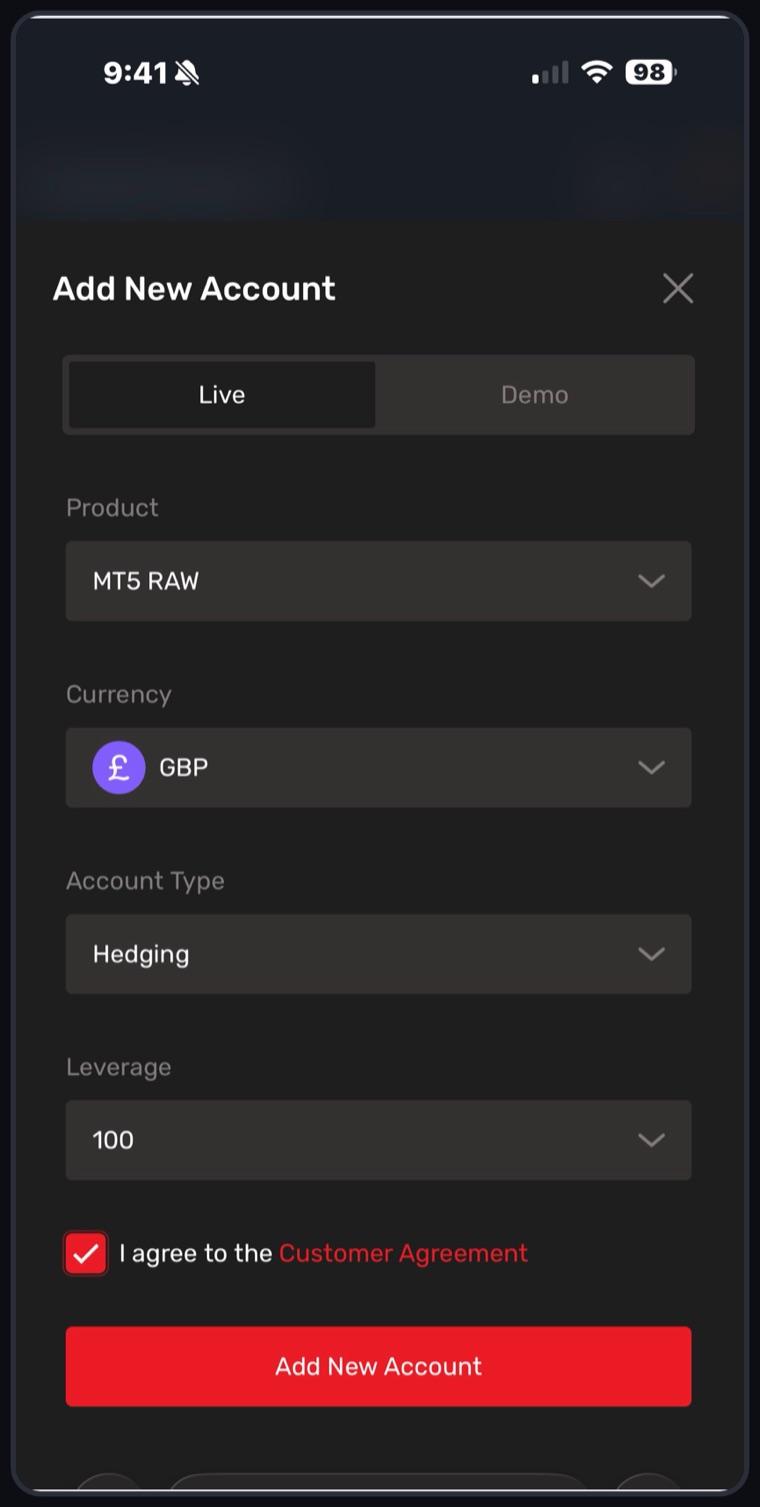
The example used MT5 RAW, GBP, Hedging and 1:100 leverage. These are examples, not recommendations. RAW accounts can charge a separate commission, and leverage magnifies losses as well as gains. Compare the broker's current spreads, commission and other charges first.
Step 2: understand wallet vs trading account
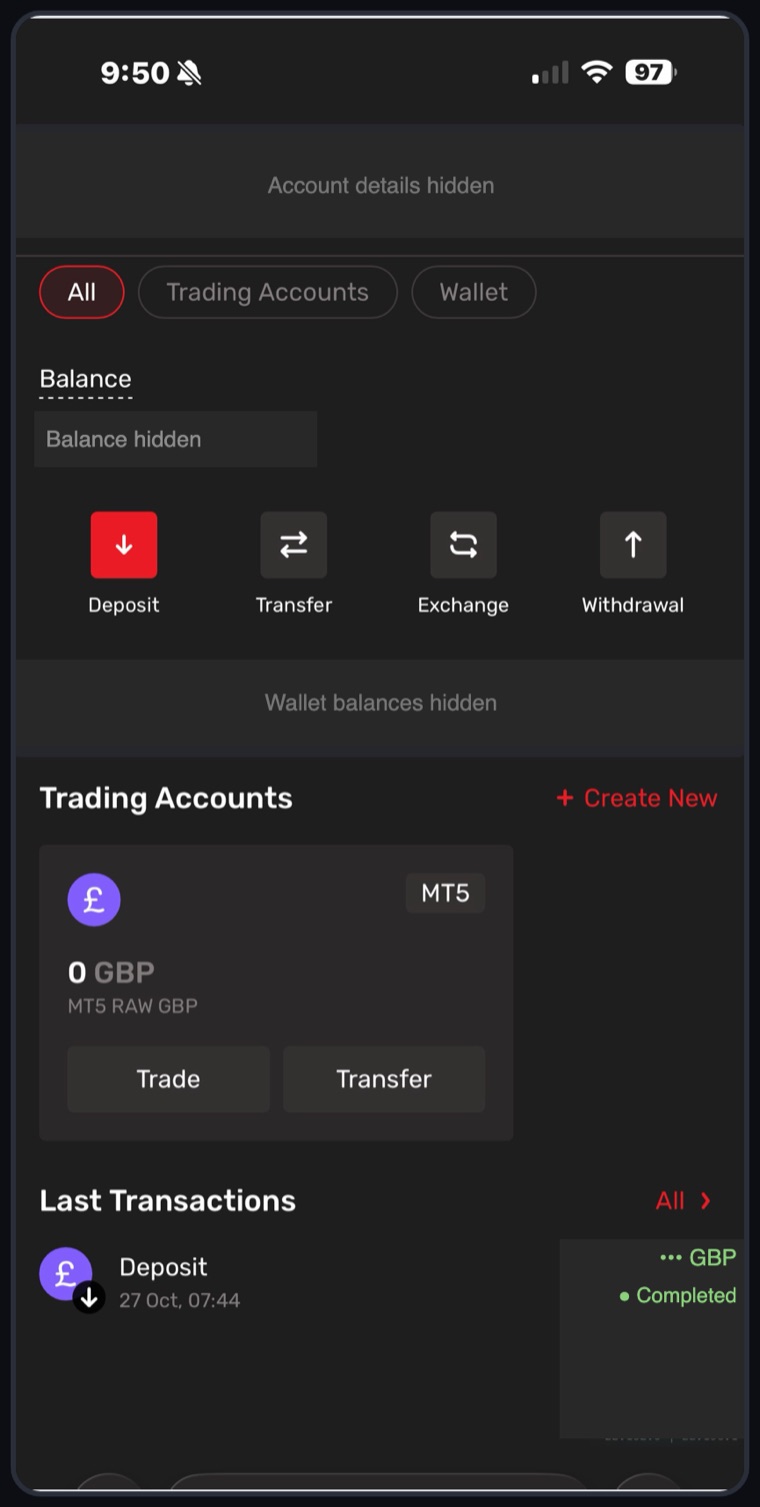
After you create the account, go back to Home. Your wallet shows the money you deposited. The new MT5 trading account starts at zero. They are separate balances.
Step 3: transfer funds to MT5 (live accounts)
- On the MT5 account card, tap Transfer.
- Set From to your GBP wallet and To to your new MT5 account.
- Enter the amount you choose, check everything twice, and confirm.
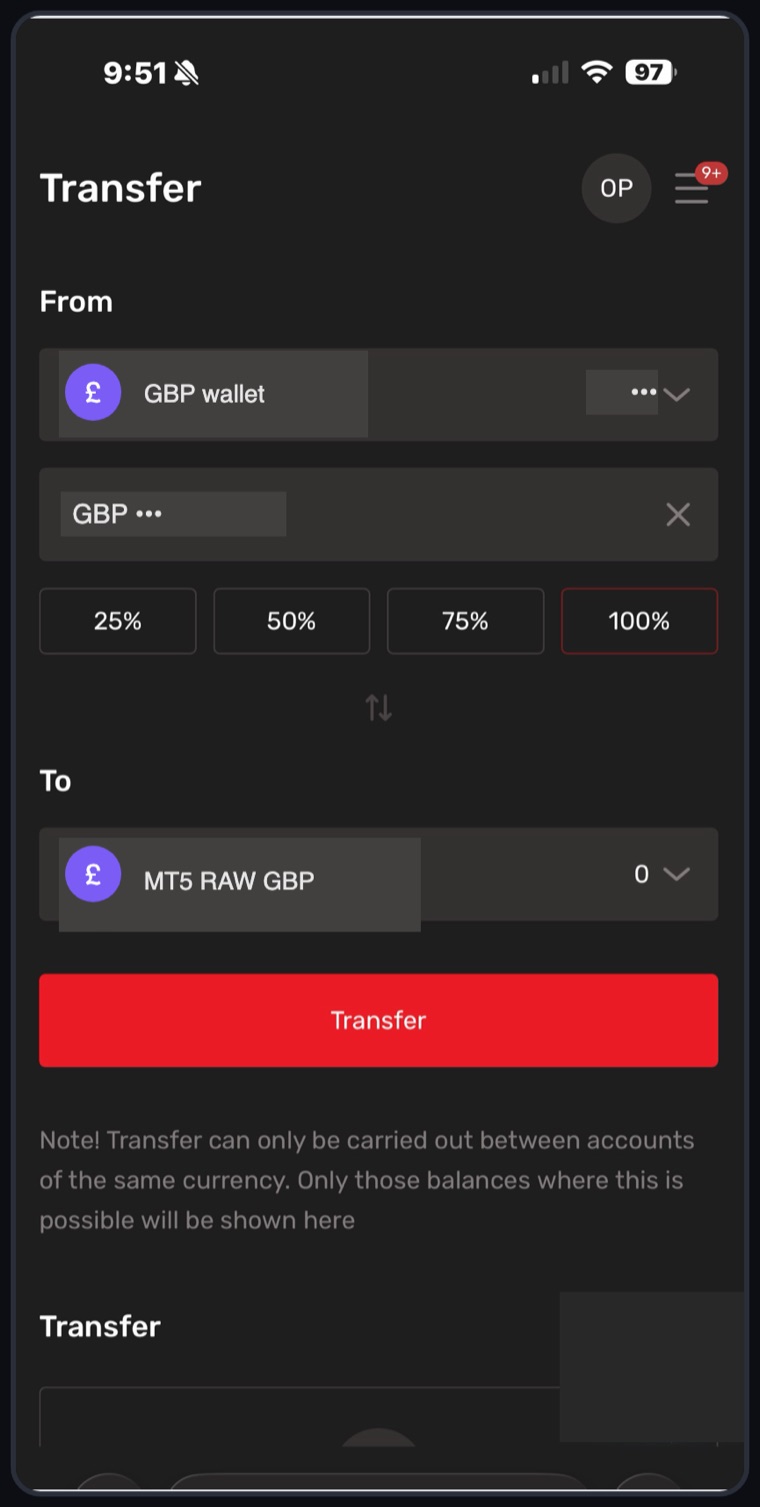
Only transfer money you can afford to lose. A transfer does not place a trade.
Step 4: confirm the transfer worked
Wait for the success message and go back to the account overview. Check that the balance has appeared in the MT5 trading account. If it hasn't, look at your transaction history or contact TradeQuo before repeating the transfer.
A success message confirms the request was sent. Always check the receiving balance yourself.
Step 5: connect your account in MetaTrader 5
- Open MetaTrader 5 and go to Settings → New Account.
- Search for TradeQuo. In our setup the working listing was Quo Markets LLC (TradeQuo).
- Choose Use existing account, then Trade Account.
- Pick the server. In our setup it displayed TradeQuo-Server.
- Enter your own MT5 account number and MT5 trading password, then sign in.
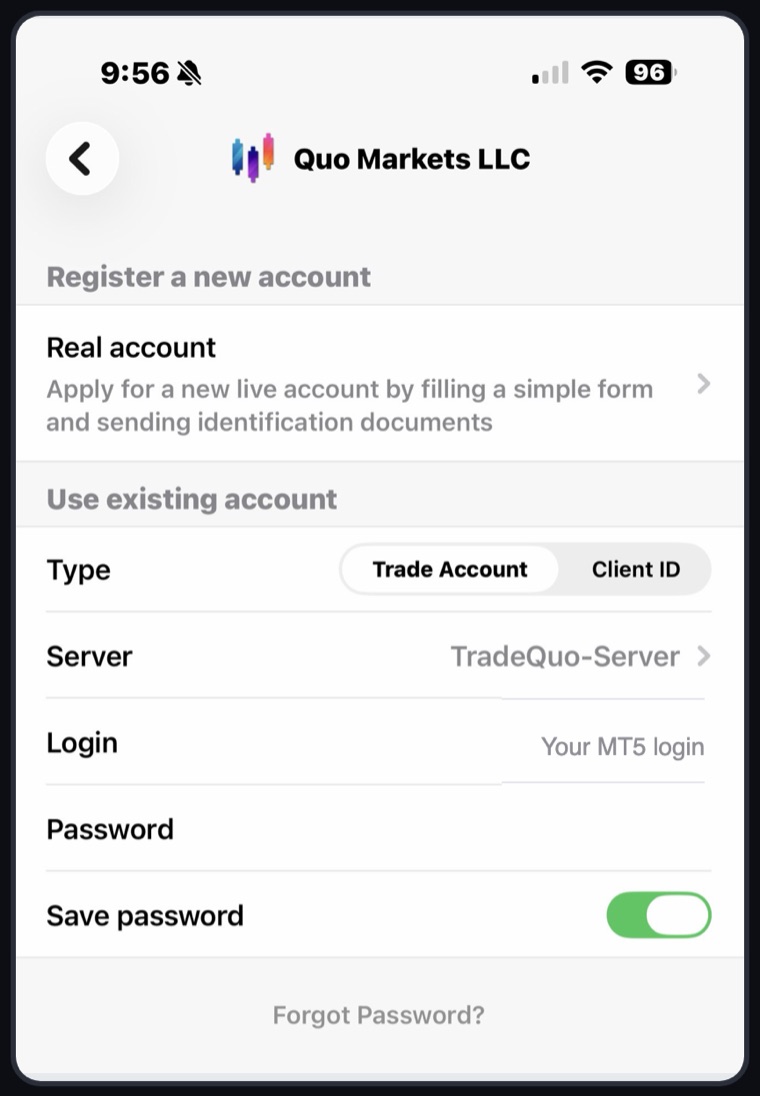
Use existing account with the login you already created. Never share your MT5 password, verification codes or full account details with anyone.
Step 6: check your balance
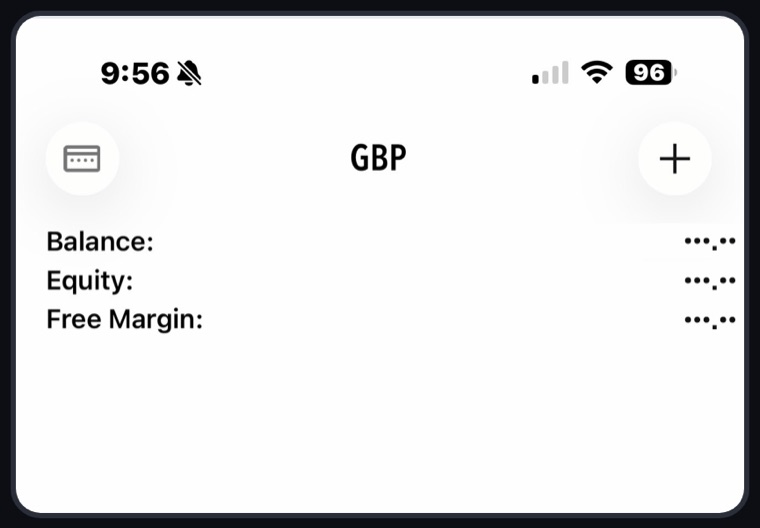
Open the Trade tab. A successful login shows your account currency and balance. Before any trade, balance, equity and free margin should all match the funds you transferred. If your balance is missing, check that you are on the correct live account and the correct server.
Step 7: add gold to your Quotes
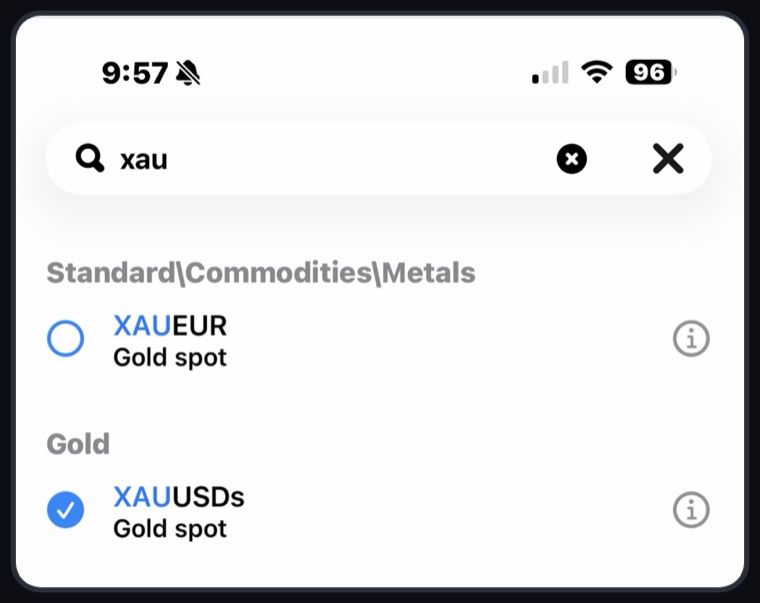
- Open Quotes and tap +.
- Search xau.
- In our setup, gold appeared as XAUUSDs (with a final "s"). Tap its circle to add it.
Use the exact symbol your broker lists. Other brokers may use XAUUSD or a different suffix. XAUEUR is gold priced in euros, not dollars. Keeping gold as your only symbol while you learn helps avoid mixing up markets and lot sizes.
Step 8: open your gold chart
- Tap XAUUSDs in Quotes and choose Chart, or use the Chart tab.
- Use the timeframe button to switch to M5: each candle covers five minutes.
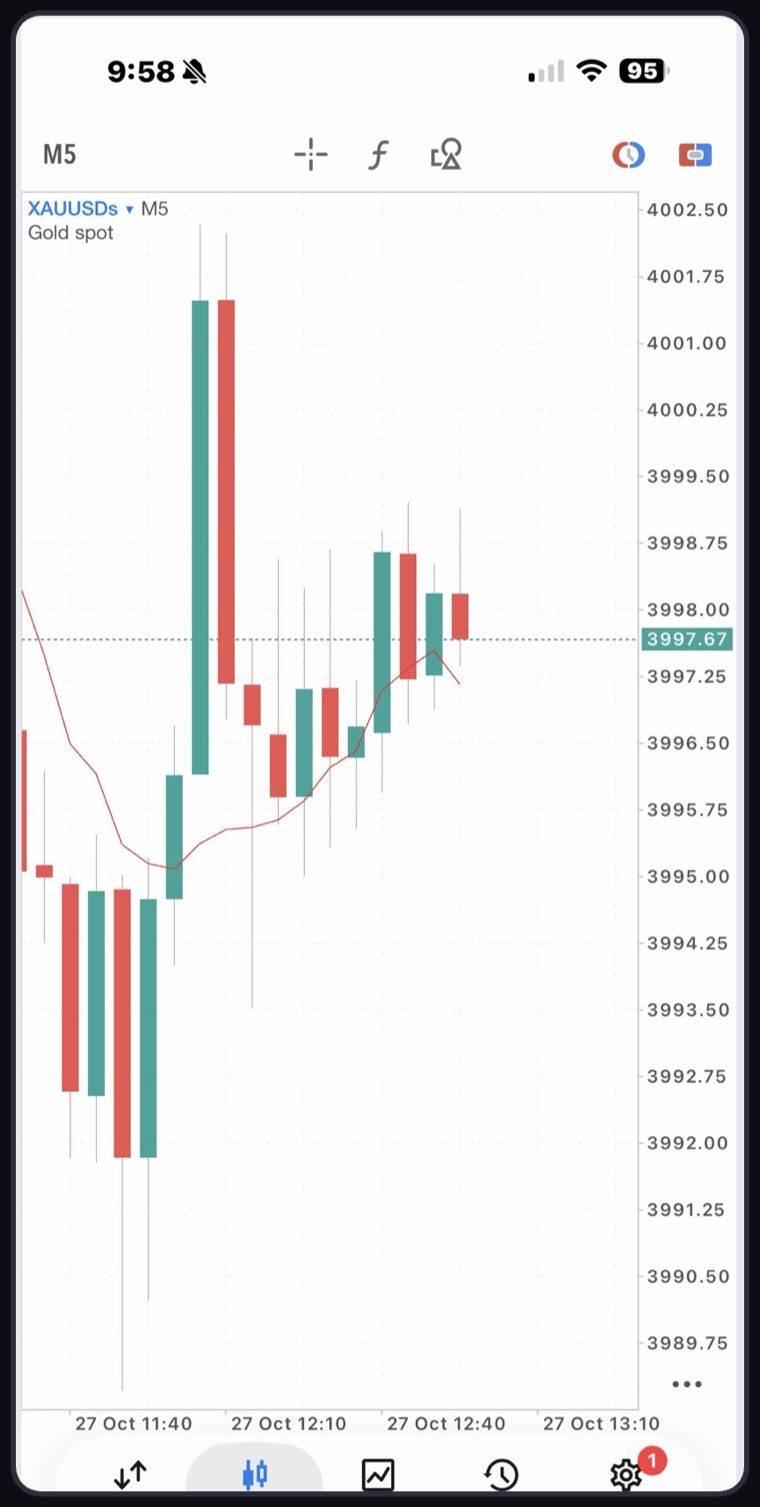
Seeing a chart is not a trade. Before you trade, learn stop losses, lot sizes, margin and order types. Our lesson How to trade gold on MetaTrader 5 covers the order ticket step by step.
Troubleshooting and account safety
Invalid server name
In our setup, a different TradeQuo listing (Trade Quo Global Ltd.) gave an invalid server error. Going back to Quo Markets LLC and using its working server fixed it. The broker listing assigned to your own account may differ, so check your account details.
Balance shows zero
Check you are on the correct live account, that the wallet-to-MT5 transfer has completed and that the app has refreshed. Do not deposit again without checking first.
Gold is missing
In Quotes tap + and search xau. Symbol names and contract specifications vary by broker.
Before your first trade
Check the symbol's contract size, minimum lot, spread, commission, margin requirements, trading hours and stop-out rules. Set a stop loss and size every position by the amount you can afford to lose.
Account safety
Never post account numbers, passwords, one-time codes or ID documents in screenshots or chats. Use a strong, unique password and turn on two-factor authentication if it is offered.
The Gold Desk works with TradeQuo. You can register with TradeQuo through our link. We may earn a commission if you do, at no extra cost to you. Offers and terms are set by the broker and can change. Not available to residents of the USA. The 1:100 leverage and any deposit amounts mentioned in examples are illustrations only, not recommendations. CFDs carry a high risk of losing money rapidly.
Test yourself
Frequently asked questions
Is this an official TradeQuo guide?
No. It is an independent Gold Desk walkthrough based on one tested setup. Screens, names and terms can change, so follow what TradeQuo shows you.
Why does the guide say the examples are not recommendations?
Account type, leverage and deposit amounts depend on your own circumstances and risk. The numbers shown were simply what was used in a tested setup.
Do I need to pay to use this guide?
No. The guide is free. Trading costs charged by your broker still apply.
Is TradeQuo available everywhere?
Availability depends on your country and the broker's terms. Our offers are not directed at residents of the USA. Check the broker's terms for your location.
Sources and further reading
- Official MetaTrader 5 download page — installing from official sources.
- MetaTrader 5 Help: Open an account — demo accounts and connecting to a broker.
- MetaTrader 5 Help: user guide — menus, Market Watch and charts.
Related lessons
The Gold Desk shares XAUUSD signals on Telegram, with entry, stop loss and targets on every call. Signals are educational ideas, not advice, and no result is guaranteed. Not directed at residents of the USA. Join the free Telegram channel.